
Blog/TV Time
Didn't save your TV Time export? How to rebuild your history
TV Time has closed and can no longer send data exports. If you never saved yours, here is the honest picture and the fastest way to rebuild your watch history.
 TvTick··3 min read
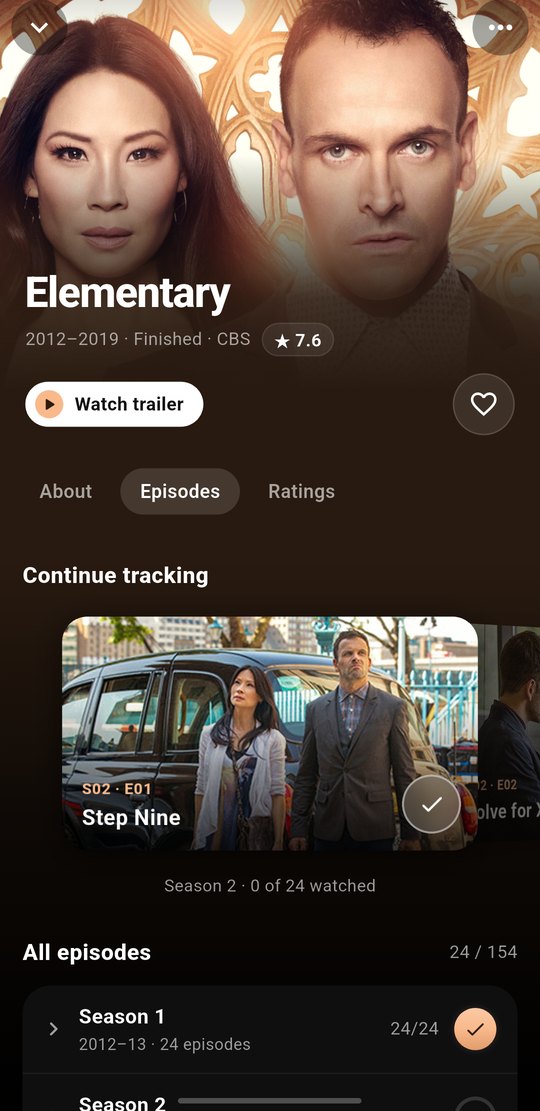
TV Time closed on 15 July 2026. If you never downloaded your data before then, you have probably searched for a way to get it now. Here is the honest answer, and then the quickest way to get your history back into shape.
Can I still get my TV Time data?
No new export can be made. TV Time has shut down, so there is no app or website left to ask, and no other tracker can fetch your data from TV Time on your behalf. Be careful with any site or tool that promises otherwise and asks for your old TV Time password.
Before you give up, check that you really do not have a copy. Many people asked for their export months ago and forgot about it:
- Search your phone and computer for
gdpr-data(the usual name of the TV Time ZIP). - Search your email for messages from TV Time about your data. The file may be attached or saved with your attachments.
- Look in cloud storage such as Google Drive or OneDrive.
Found it? Read what to do with your TV Time ZIP file instead.
Did you use Trakt as well?
Some TV Time users also kept a Trakt account, or synced to one at some point. If you did, Trakt lets you download an export of your own history, and TvTick can read it: the ZIP, or the JSON files inside it. Your watched episodes and movies come across with their dates and rewatches.
In TvTick, open Profile, the settings icon, then Data, and tap Import Trakt data. The import guide has the details.
Did you log films on Letterboxd? TvTick reads a Letterboxd export too, with your diary dates, ratings, watchlist and lists.
Rebuilding from scratch is faster than it sounds
Without an export, you start from the shows themselves. A few hundred episodes sound like a weekend of tapping, but most of it goes in a few taps per show:
- Search for a show and add it. Start with the ones you are watching now, then the ones you finished.
- Tick a whole season in one tap. For a show you finished, tick each season and you are done. There is Undo if you tap the wrong one.
- Stop where you are. For a show you are halfway through, tick the finished seasons and then the episodes of the current one up to where you are.
- Add dates only where they matter to you. Long-press an episode or movie to pick the day you watched it. You do not need to do this for everything.
Start with the shows you care about most. The rest can come back as you remember them.
What will my stats look like?
Your totals fill in straight away: hours watched, episodes and movies, and the 43 badges, which are counted from everything you have marked, so a rebuilt history unlocks them at once.
One honest limit: when you tick a large backlog in one day, TvTick does not pretend you watched it all that day. Ticks past 12 hours of viewing in a single day count in your totals but not in your biggest binge or the watch calendar. Your real day-by-day picture starts from the day you start tracking.
Next time, keep your own copy
Losing years of history once is enough. TvTick lets you export everything at any time, free: every episode you watched and when, rewatches, movies, lists, ratings, comments and badges, as spreadsheet-ready CSV files and one JSON file. Shows and movies carry their TMDB, TVDB and IMDb ids, so other apps can read it. Download a copy every few months and keep it somewhere safe.
TvTick is free, with no ads, on Android, and works in any browser. Get it on the Play Store or open it in your browser.
Try TvTick. It's free.
Tick off episodes, see what airs next, and get a spoiler-free recap when you come back to a show. No ads.
Keep reading
All posts →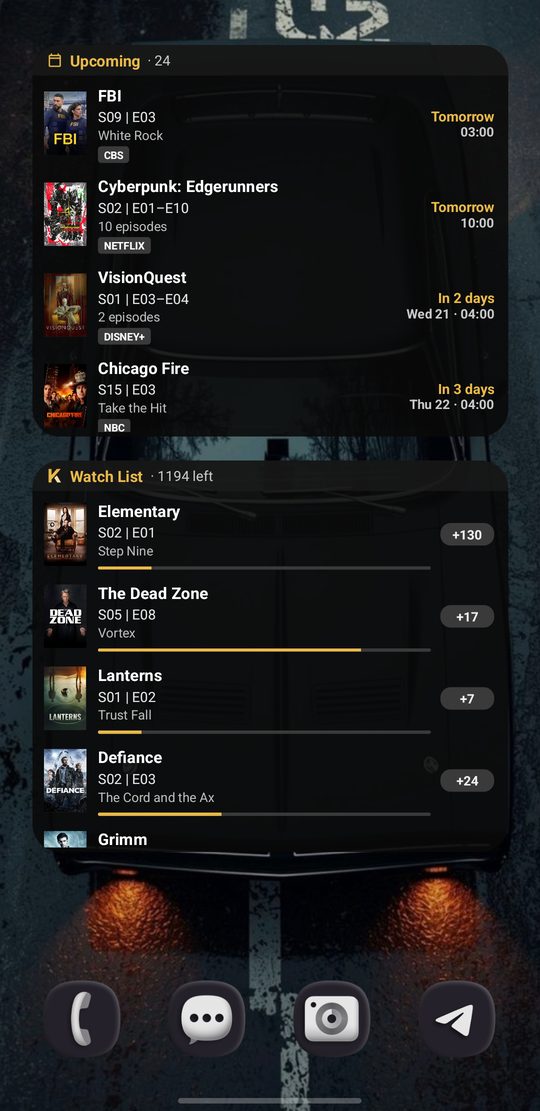
A TV Time alternative for Android, with home-screen widgets
Looking for a TV Time replacement on Android? TvTick puts your next episodes and what airs soon on your home screen, imports your TV Time history, and has no ads.
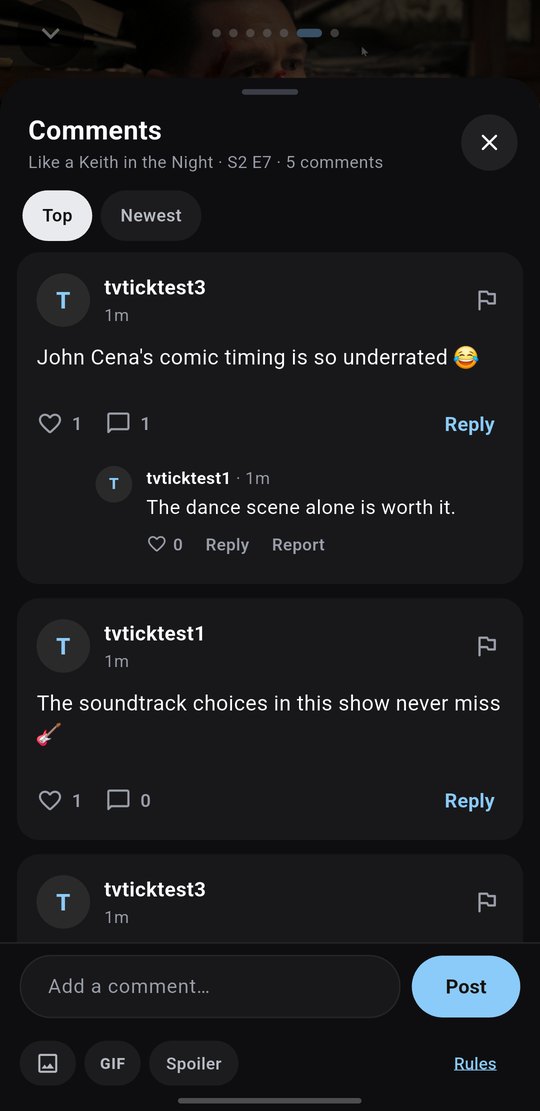
A TV Time alternative that keeps your comments
Most TV Time alternatives bring back your watch history and leave your comments behind. TvTick can post the comments you wrote in TV Time, with their original dates.
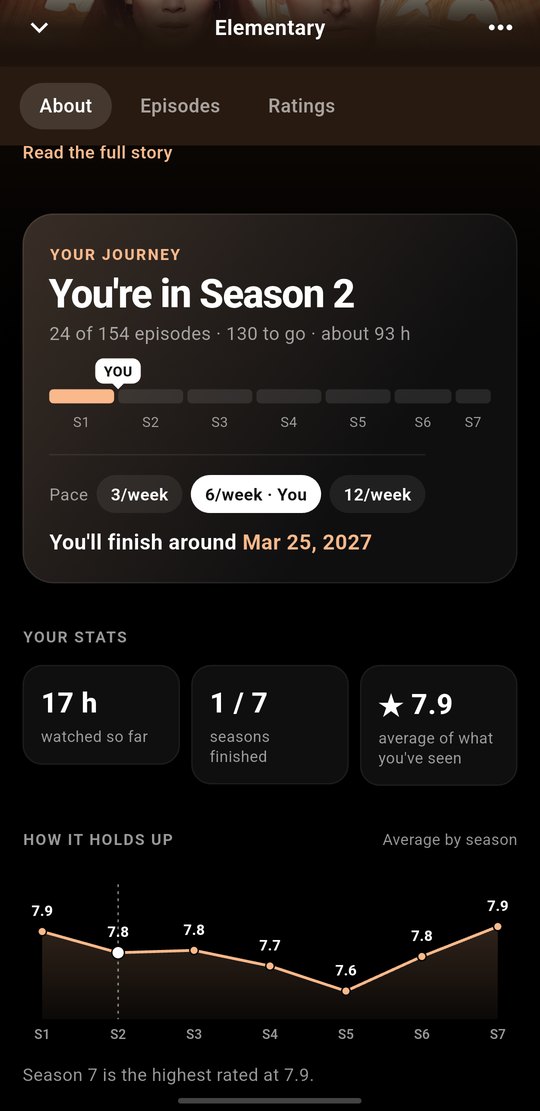
Still have your TV Time ZIP file? Here is what to do with it
TV Time has closed, but the gdpr-data.zip export you saved still holds your whole watch history. Where to find it, how to keep it safe, and how to bring it back to life.