
Blog/Guides
Free TV show tracker template for Google Sheets and Excel
A free TV show tracker spreadsheet you can download and open in Google Sheets or Excel, with progress worked out for you, plus how to set it up and when an app does it better.
 TvTick··4 min read
A spreadsheet is the simplest way to keep track of the shows you watch: one row per show, and you are in control of every column. Here is a free template you can open in Google Sheets or Excel in a minute, how to set it up, and an honest look at when an app is the better tool.
Download the free TV show tracker template (CSV)
What is in the template?
One row per show, with these columns:
- Show: the name.
- Where to watch: the service or channel.
- Status: Watching, Finished, Stopped or Want to watch.
- Current season.
- Episodes watched and Total episodes.
- Progress: worked out for you from the two columns before it.
- Last watched: the date of your last episode.
- Next episode airs: so you know what is coming.
- My rating (1-10) and Notes.
The first four rows are examples. Overwrite them with your own shows.
How to open it in Google Sheets
- Download the template.
- Open Google Sheets and create a blank spreadsheet.
- Choose File, then Import, then Upload, and pick the file.
- Choose Replace current sheet and keep Convert text to numbers, dates, and formulas ticked, so the Progress column works.
- Select the Progress column and choose Format, then Number, then Percent.
How to open it in Excel
- Download the template and open it in Excel.
- Select the Progress column and format it as a percentage.
- Choose File, then Save As, and save it as an Excel workbook (.xlsx), so your formatting stays.
Make it work better
- Freeze the top row so the column names stay in view as your list grows.
- Add a filter on the Status column to see only what you are watching.
- Colour the Status column with conditional formatting: green for Watching, grey for Finished, red for Stopped.
- Sort by Next episode airs on Sunday to plan your week.
- Copy the Progress formula down to new rows: it divides Episodes watched by Total episodes and stays blank when the total is empty.
When a spreadsheet works well
A spreadsheet is a good fit if you follow a handful of shows, like deciding exactly what you track, or want a record you fully own and can edit anywhere.
When it stops working
Most people give up on their spreadsheet for the same few reasons:
- Updating it after every episode is a chore. Typing "15" over "14" in the right cell gets old fast, so the sheet falls behind and stops being true.
- It does not know when new episodes air. You have to look up and type every date yourself, and it will not tell you when a show comes back.
- It does not know what a show is. No episode titles, no season lengths, no posters, no idea that a show has been renewed.
- It is clumsy on a phone, which is where you are when the episode ends.
The app version of this spreadsheet
TvTick tracks the same things as the template, and fills most of it in for you:
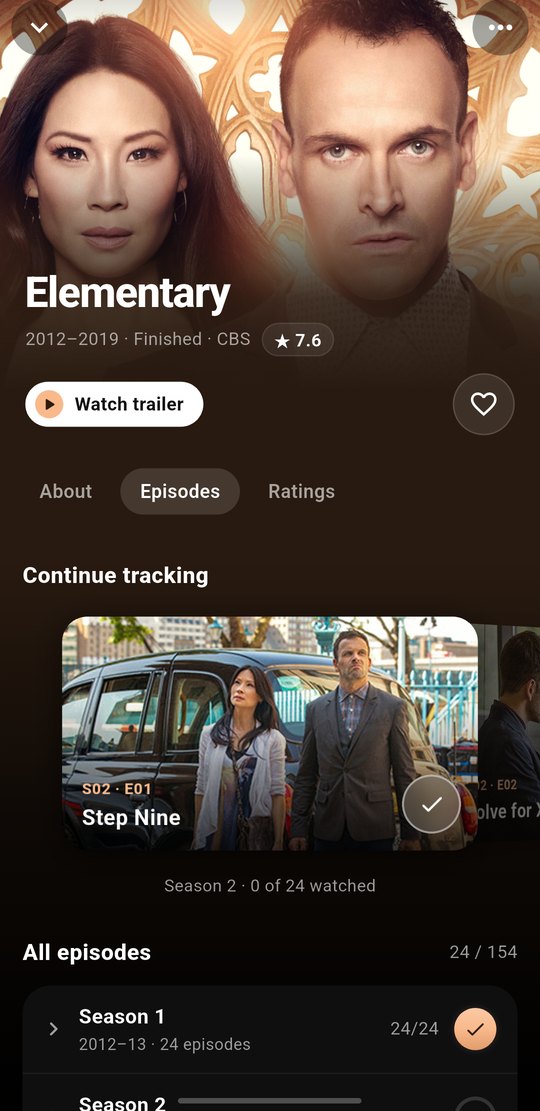
- You tick an episode in one tap, or a whole season, and progress, the last watched date and your stats update on their own.
- Upcoming knows when the next episode airs, for everything you follow, and sends a notification once it has.
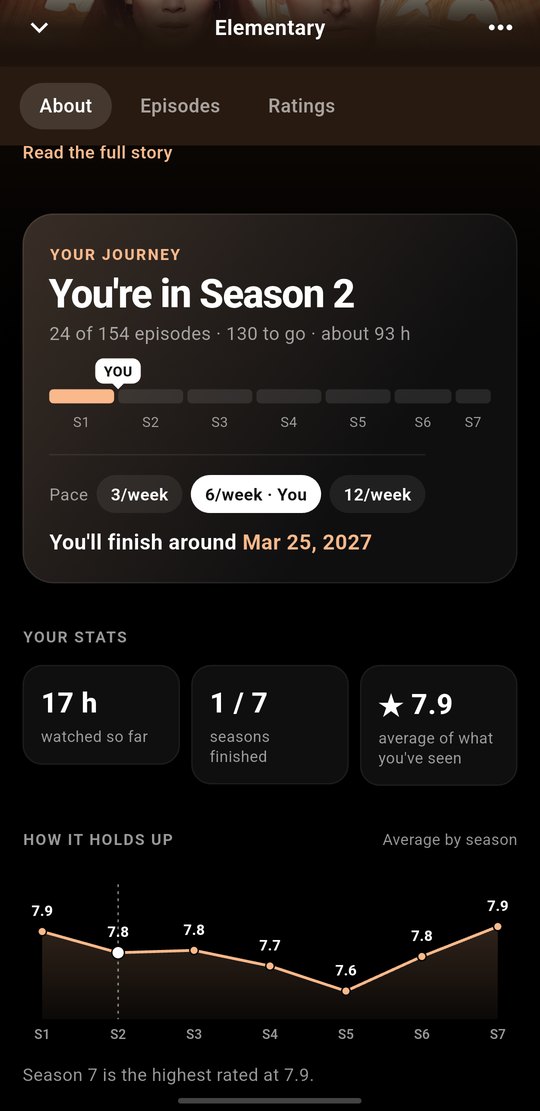
- Each show tells you which season you are in, how much is left and the day you will finish at your pace.
- Ratings, notes on how an episode felt, your own lists and rewatches are all there.
- It is free, with no ads, on Android and in any browser.
And you keep the spreadsheet's best feature: you own your data. TvTick lets you export everything any time, free, as spreadsheet-ready CSV files: every episode you watched and when, rewatches, movies, lists and ratings. Open them in Google Sheets or Excel whenever you like.
Already tracking somewhere else? TvTick can import a TV Time, Trakt or Letterboxd export with your dates. The import guide has the steps, and our TV Time page explains what comes across from TV Time.
Questions
Is the template free?
Yes. Download it, open it in Google Sheets, Excel or any spreadsheet app, and change it however you like.
Does it work in Numbers or LibreOffice?
Yes. It is a CSV file, which every spreadsheet app opens. If the Progress column shows the formula as text instead of a number, type it in again: =IF(F2>0,E2/F2,"") in the first row, then copy it down.
Can I track movies in it too?
Yes. Add a row per movie, set Total episodes to 1, and use Episodes watched as 0 or 1. TvTick tracks movies separately, with their own list and stats.
Can I turn my spreadsheet into a TvTick history?
Not directly: TvTick imports TV Time, Trakt and Letterboxd exports, not your own spreadsheet. With your sheet open next to TvTick, you can tick whole seasons in one tap and long-press an episode to set the day you watched it.
Try TvTick. It's free.
Tick off episodes, see what airs next, and get a spoiler-free recap when you come back to a show. No ads.
Keep reading
All posts →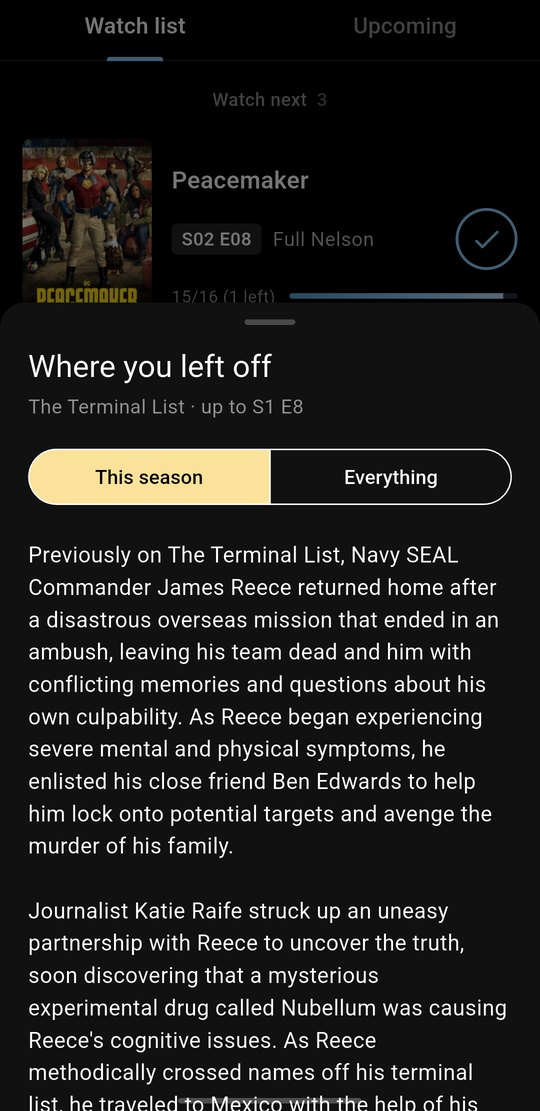
How to catch up on a TV show without rewatching it
A new season is out and you cannot remember how the last one ended. Ways to catch up on a TV show fast, from recaps that stop where you stopped to knowing exactly which episode you were on.
Track what you watch on Plex automatically
Want your Plex watch history in a TV tracker without ticking every episode by hand? TvTick ticks the episodes and movies you finish on your Plex server, on any TV or phone.
A TV show tracker you can use in your browser
Want to track TV shows on a computer, or on a phone without installing anything? TvTick works in any browser, free and with no ads, on the same account as the app.