
Blog/Guides
How to keep track of the TV shows you watch (and never lose your place)
Too many shows, too many services, and no idea which episode you were on? A simple system for tracking what you watch, what airs next and where you left off.
 TvTick··3 min read
You finish an episode, close the app, and three weeks later you are staring at a season list trying to remember whether you saw episode 6. With shows spread across Netflix, Prime Video, Disney+ and whatever your friends recommended, keeping track in your head stops working fast.
Here is a simple way to always know where you are in every show and when the next episode lands.
Why it gets hard to keep track
Most people follow more shows than they think: a couple they watch every week, a few they are slowly working through, and a long tail they started and forgot. The streaming apps do not help much. Each one only knows about its own shows, "Continue watching" rows reshuffle themselves, and none of them tells you that a show on another service just came back for a new season.
Your memory is fine. Your watching just lives in five different places.
Step 1: Put every show in one list
The first step is a single list of everything you are watching, whichever service it is on. You can do this in a notes app or a spreadsheet, but you will stop updating it within a week: writing "S2E7" by hand after every episode is a chore.
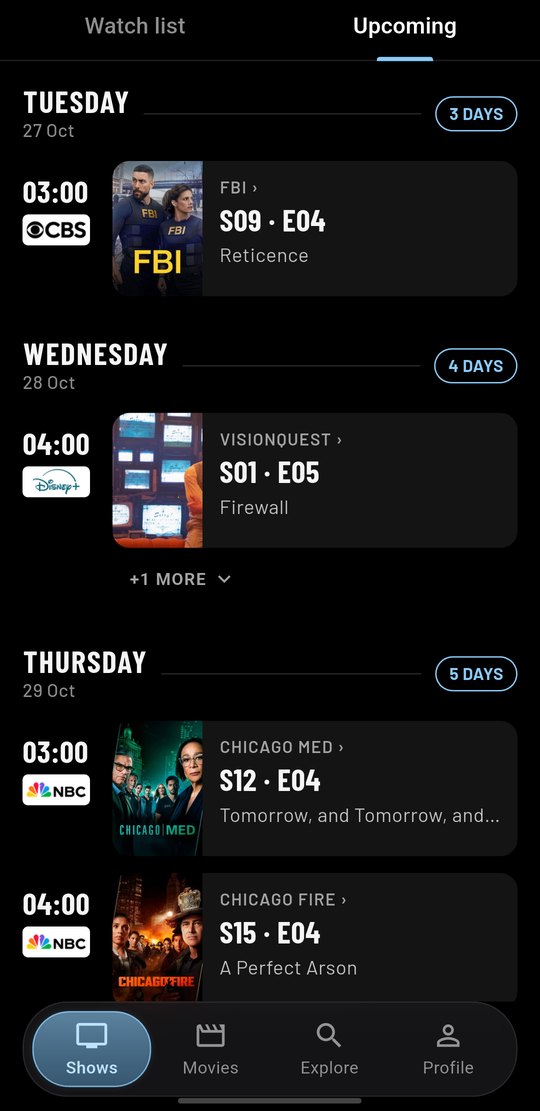
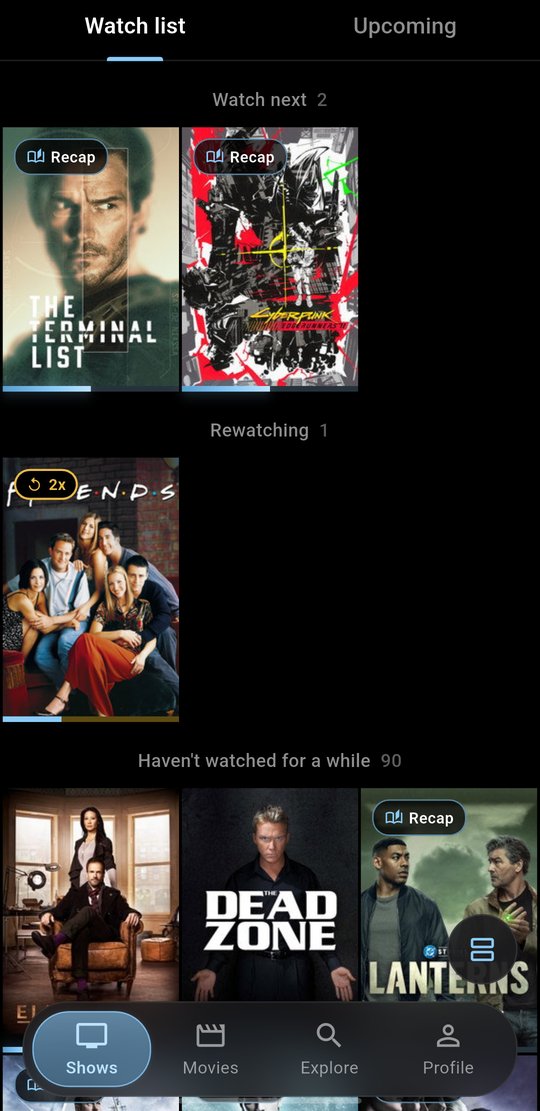
A tracker app does the bookkeeping for you. In TvTick you search for a show, add it, and tick off episodes as you watch them, one at a time or a whole season in one tap. Your watch list then sorts itself, with the next episode of each show ready to tick.
Step 2: Know when new episodes air
The second half of keeping track is knowing what is coming. A good tracker shows an Upcoming list: the day, the time and the service for the next episode of everything you follow, worked out for where you live.
TvTick also sends a quiet notification once a new episode has actually aired, so a show returning after a year-long break does not slip past you.
Step 3: Pick up where you left off without spoilers
Coming back to a show after a few months is where most people give up: you remember the main characters, but not why everyone is angry with each other.
TvTick offers a spoiler-free recap of this season, the last one, or the whole story so far, written only from the episodes you have already watched. It stops at your latest episode, so it never gives away what comes next. Free accounts get one recap a month, and Premium makes them unlimited.
Step 4: Let it tick episodes for you
The less you have to remember to tick, the better the list stays. If you watch on a laptop, the TvTick browser extension for Chrome and Edge ticks each Netflix episode once you have really watched it. If you run Plex or Jellyfin at home, you can connect it once and the episodes and movies you finish on it are ticked on any TV or phone. Auto-tick is a Premium feature.
Already tracking somewhere else?
If you used TV Time before it closed and saved your data export, or you have a Trakt export, you do not have to start from zero. TvTick can import your history with the date you watched each episode, your rewatches and your favorites. The import guide walks through it, and our TV Time page explains what comes across.
The short version
- Keep one list for every show, on every service.
- Let an Upcoming list and new-episode alerts tell you what is next.
- Use a recap instead of rewatching a whole season to catch up.
- Tick as you go, or let auto-tick do it.
TvTick does all of this for free, with no ads, on Android. Get it on the Play Store or try it in your browser.
Try TvTick. It's free.
Tick off episodes, see what airs next, and get a spoiler-free recap when you come back to a show. No ads.
Keep reading
All posts →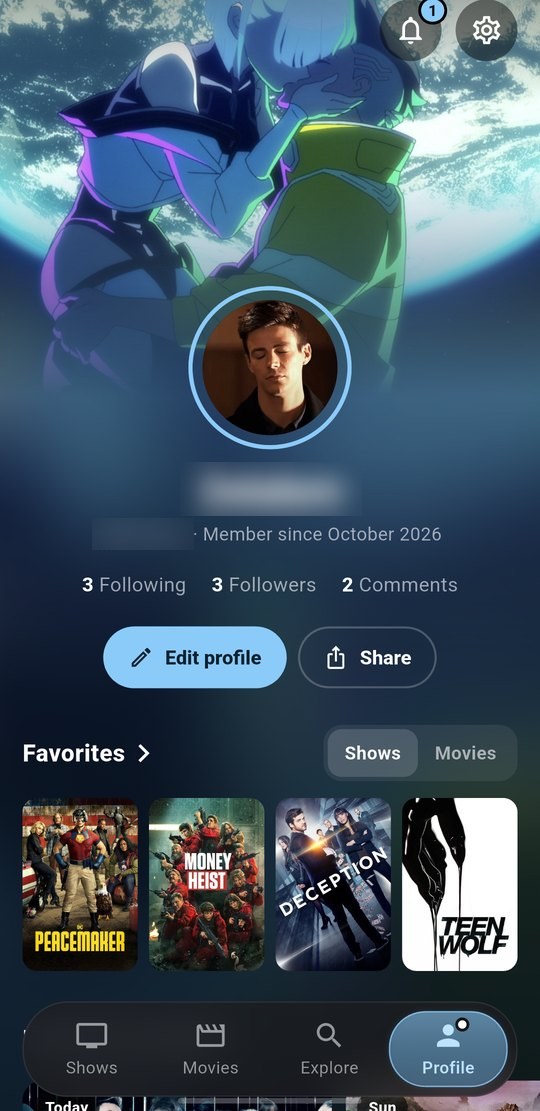
A TV show tracker you can use in your browser
Want to track TV shows on a computer, or on a phone without installing anything? TvTick works in any browser, free and with no ads, on the same account as the app.
TvTick vs Trakt: an honest comparison
TvTick and Trakt both track TV shows and movies, import your history and tick what you watch on Plex or Jellyfin. Here is how they differ on price, phones and features.
A TV Time alternative for Android, with home-screen widgets
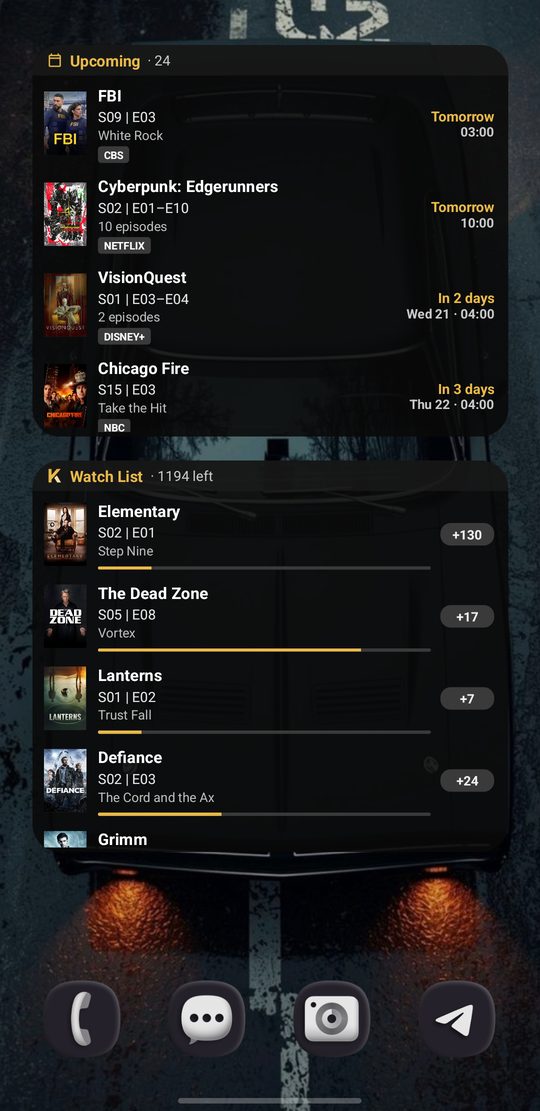
Looking for a TV Time replacement on Android? TvTick puts your next episodes and what airs soon on your home screen, imports your TV Time history, and has no ads.